How to turn bill screenshots and receipts into expense entries on iPhone
Short answer
Take a screenshot of the payment confirmation or bill, or photograph the receipt, then let an expense app read the text and turn it into drafts you check before saving. In My Money, the picture button next to the Add capsule takes up to 5 images, reads them on your iPhone with Apple Vision and saves nothing until you tap save. The images are never uploaded.
You can track expenses from screenshots on iPhone without typing every amount and without linking a bank. After you pay, take a screenshot of the confirmation screen or the bill, or photograph the paper receipt. An expense app then reads the text and turns it into draft entries. You check the drafts, fix anything that was misread, and save. In My Money, the picture button next to the Add capsule on the Home screen takes up to 5 images at once, reads them on your iPhone with Apple Vision, and saves nothing until you tap save.
This guide covers why screenshots are a practical way to log spending, which images read cleanly, the exact steps in My Money, how to avoid counting a purchase twice, and what the feature does not do.
Why log expenses from screenshots instead of typing or bank sync?
Expense tracking usually takes one of two routes. You type every purchase by hand, or you link a bank or card account and let transactions flow in. Typing keeps everything private, but it is tedious, and by the evening small amounts get rounded or forgotten. Bank linking is automatic, but it means giving a service access to your account, and transactions can take a day or more to appear, sometimes under a merchant name you don't recognize.
Screenshots sit between the two:
- The record already exists. After paying by phone or online, you usually see a confirmation screen with the exact amount, the merchant and the time. Capturing it takes a second.
- One image can hold several purchases. An order summary, a bill or a transaction list shows many lines at once, which makes it a quick way to catch up after a busy few days.
- The amount is exact. $23.47 stays $23.47 instead of turning into "about $25" in your memory.
- No account access. You decide which images the app sees. Nothing is pulled from your bank.
The trade-off is that it is still a manual habit: you take the screenshot and hand it to the app. That small step can be useful in itself, because it keeps each purchase visible. For the wider case for skipping bank sync, see budgeting without linking a bank account.
Which screenshots and photos work best?
Text recognition is most reliable when the amount is printed clearly and there is little else on the screen. Good candidates:
- Payment confirmation pages. The "payment successful" screen from a payment app, a banking app or an online checkout. One purchase, one prominent amount.
- Order and bill details. An online order summary, a food delivery order, a utility or phone bill.
- Receipts. A paper receipt photographed flat in good light, or a screenshot of an emailed receipt.
- Statements and transaction lists. A page of recent transactions from a card or wallet app, useful for logging several days in one go.
Images that tend to cause trouble:
- Handwritten receipts and notes.
- Faded thermal paper, crumpled receipts and photos taken at a steep angle.
- Screenshots where the amount is cut off at the edge.
- Screens full of unrelated numbers: ads, chat messages, account balances, reward points.
If an image falls into the second group, typing the entry is usually faster than correcting a bad read.
How do you turn a screenshot into an expense in My Money?
- Capture the record. Take a screenshot of the payment confirmation or bill the way you normally do, or keep the paper receipt. The app doesn't collect screenshots on its own; you choose each one.
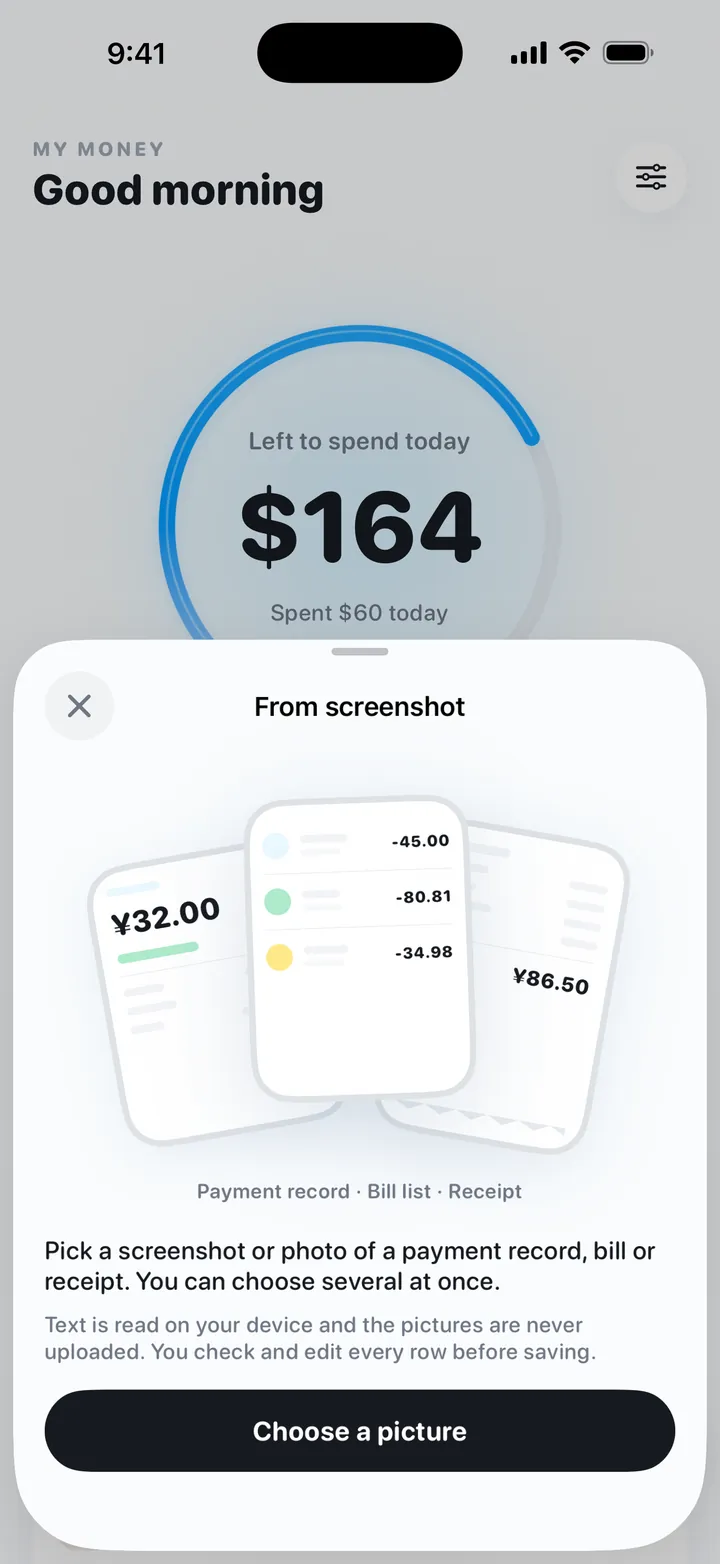
- Tap the picture button. Open My Money and tap the picture button next to the Add capsule on the Home screen.
- Pick up to 5 images, or take a photo. Select up to 5 screenshots or photos in one round, or use the camera to photograph a receipt on the spot.
- Let it read the text. The text is read on your iPhone with Apple Vision, Apple's on-device image recognition. The images are not uploaded.
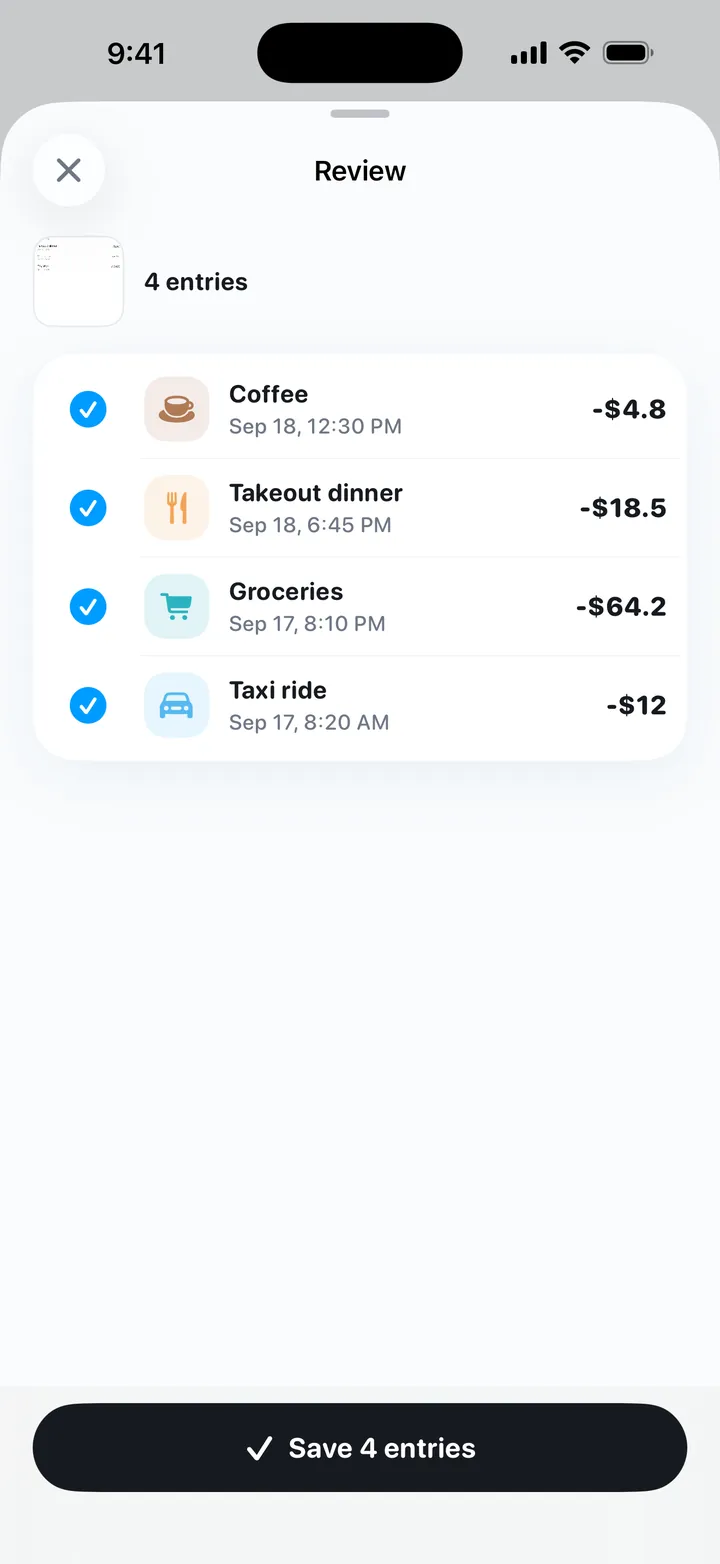
- Review the drafts. Every line it reads becomes a separate draft. Edit anything that looks wrong and uncheck anything you don't want to log.
- Tap save. Nothing is added to your records before this point. Once saved, the entries count toward your budget like any other entry.
Saved entries feed the "left to spend today" number on the Home screen. If you are new to that idea, the daily budget method explains how a monthly budget becomes one daily figure.
Try My Money on iPhone
Your monthly budget as one number: what you can still spend today. Log by typing, voice or a bill screenshot. Free, no account, no ads.
How do you get accurate results from receipt and bill screenshots?
- Crop to the part that matters. Use the Photos editor to crop away balances, ads and recommended products before you pick the image. Less noise means fewer wrong drafts.
- Photograph receipts flat and sharp. Lay the receipt on an even, dark surface, avoid shadows and glare, and hold the phone parallel to the paper.
- Check every amount and date. A missed decimal point turns $4.50 into $450. A transaction list can also show dates that differ from the day you think you paid. Compare each draft with the image before saving.
- Uncheck what isn't spending. Refunds, reversed charges, transfers between your own accounts and credit card repayments for purchases you already logged should not be saved as new expenses.
- Log each purchase once. The same coffee can show up in a payment notification, a confirmation screen and later a statement. Pick one source per purchase. If you typed it at the counter, uncheck it when it reappears in a screenshot.
- Batch it. Screenshot each confirmation during the day and log them together in the evening, up to 5 images per round.
Worked example: one screenshot, four lines
You screenshot today's transaction list from your card app. It shows:
- Lunch: $12.00 (you already typed this at noon)
- Bus fare: $2.75
- Groceries: $36.00
- Refund for a returned jacket: $20.00 (you bought the jacket before you started logging)
Keep bus fare and groceries: $2.75 + $36.00 = $38.75 of new spending. Uncheck lunch, because it is already in your log; saving it again would overstate the day by $12.00. Uncheck the refund as well. The jacket was never logged, so the $20.00 is wrong either way: as spending, it adds money you didn't spend today; as income, it cancels out $20.00 of real spending.
Typing, voice or screenshot: which should you use?
My Money has three ways to add an entry yourself. Each suits a different moment, and they work well mixed.
| Method | What you do | Best for | Where it's processed |
|---|---|---|---|
| Typing (Quick Add) | Type a short line such as "Coffee 5"; the amount and category are filled in | A single purchase you just made; words like "yesterday" set the date | On device by default |
| Voice | Tap the mic on the Add capsule, say what you bought, review the draft, save | Right after paying, when your hands are busy | On-device speech recognition only; audio is never uploaded |
| Screenshot or photo | Pick up to 5 images or take a photo, review the drafts, save | A confirmation already on screen, bills with several lines, catching up | Apple Vision on device; images are never uploaded |
A simple split: type or say small purchases that leave no receipt, and use screenshots for anything that already produced a confirmation screen or a bill. For voice logging from the Action Button or Siri, see logging expenses with the iPhone Action Button.
Are receipt photos and screenshots uploaded?
No. In My Money, the text in your screenshots and photos is read on the iPhone with Apple Vision, and the images themselves are never uploaded. There is no account, no sign-in and no bank connection. Your records are stored on the iPhone.
The app does include an optional online AI (DeepSeek, through the developer's relay). It is off by default, and the app asks per feature before anything is sent. If you turn it on for screenshot entry, only the text recognized from the image is sent, never the image, and you can switch it off at any time. Because that text is what leaves the phone, crop out names, addresses or card details first if you use it.
What are the limits of screenshot expense tracking?
- Reading errors happen. Text recognition can misread a digit, merge two lines or pick up a number that isn't a price. That is why every line is a draft and you review before saving.
- Handwriting and blurry photos may not work. Type those entries instead.
- It isn't automatic. You take the screenshot and choose it in the app. My Money has no bank or card sync, so every entry is one you added.
- No currency conversion. Amounts are plain numbers with no exchange rates. If a receipt is in another currency, convert it yourself before saving.
- iPhone only. My Money needs iOS 17 or later. There is no Android, web or Mac version.
FAQ
Can I track expenses from screenshots on iPhone?
Yes. Take a screenshot of the payment confirmation or bill, or photograph the receipt, and pick it in an expense app that reads images. In My Money, every line it reads becomes a draft that you review before saving.
Does My Money upload my receipt photos or screenshots?
No. The text is read on the iPhone with Apple Vision and the images are never uploaded. Optional online AI is off by default; if you turn it on for screenshot entry, only the recognized text is sent.
How many screenshots can I log at once in My Money?
Up to 5 screenshots or photos per round, or you can take a photo directly. Every line becomes a draft you can edit or uncheck, and nothing is saved until you tap save.
Does My Money pick up new screenshots automatically?
No. You take the screenshot yourself, then choose it with the picture button next to the Add capsule on Home. The app has no bank or card sync, so every entry is one you added.
Can a screenshot expense tracker read handwritten or blurry receipts?
Not reliably. Handwriting and blurry, angled or glare-covered photos may be misread or not read at all. For those, typing a short line such as “Lunch 12” is quicker.
Try My Money on iPhone
Your monthly budget as one number: what you can still spend today. Log by typing, voice or a bill screenshot. Free, no account, no ads.
Keep reading
 How to log expenses with the iPhone Action Button, Siri, Back Tap and ShortcutsPress the Action Button, say "lunch 12", and the expense is logged. How to set up My Money's Voice Log and Quick Log with Shortcuts, Siri and Back Tap.
 How to set a daily travel budget and stick to itSet a daily travel budget: pay flights and hotels first, keep a buffer, divide the rest by trip days. Worked 7-day example, carry-over and currency tips.
 How to budget without linking your bank accountYes, you can budget without bank sync. Compare manual and bank-linked apps on privacy, effort and accuracy, and learn to log spending in seconds.