How to budget without linking your bank account
Short answer
You can budget well without linking a bank account: log each purchase yourself and watch one number, how much you can still spend today. It works as long as logging takes seconds, so use one-line text, voice or screenshots. If you need automatic transaction import, net worth or investment tracking, a bank-sync app is the better fit.
Yes, you can. A budget does not need a live feed from your bank. It needs a clear limit for everyday spending and a record of what you spend against it, and you can keep that record yourself. The cost is effort, so manual budgeting only sticks when each entry takes a few seconds and you only log the spending that changes day to day. A single daily number, how much you can still spend today, makes that easy to follow. If you want every account, balance and investment pulled in automatically, choose an app with bank sync instead. Both are reasonable; they solve different problems.
Why do some people prefer not to link a bank account?
Bank sync is convenient, and for some people it is the right tool. The reasons to skip it are practical:
- It is ongoing access, not a one-time look. To import transactions, a budgeting app usually connects to your bank directly or through a data-aggregation service, and that connection keeps access to your transaction history. Some people are fine with that. Others would rather not share their spending with more companies than necessary.
- Connections break and lag. Linked accounts can need re-authorising, stop updating after a bank changes its login, or show payments later than you made them. Not every bank, card or country is covered. When the feed stalls, the budget quietly goes out of date.
- Imported lists get skimmed. A long list of merchant names and amounts is complete, but easy to glance at and move on. Writing an entry yourself takes a moment of attention, and that moment is where you notice what you are spending on.
- There is an account to create. Linking a bank usually means signing up and logging in first. Some manual apps can be used straight after installing them.
Bank-sync apps vs manual apps: how do they compare?
| Bank-sync apps | Manual, private apps | |
|---|---|---|
| Setup | Create an account, link each bank and card, then tidy up categories | Install, set a budget, start logging; often no account |
| Completeness | Every transaction the connection can see, including ones you forgot; cash is invisible | Only what you log; cash is as easy to log as card, but a missed entry stays missed |
| Timing | Depends on how quickly the bank reports; some payments appear late | Recorded the moment you log it |
| Daily effort | Low: review imports and fix categories | A few seconds per purchase, plus a short weekly check |
| Privacy | The app, and often an aggregator, keep ongoing access to your transaction data | Depends on the app; some keep records only on your phone and need no account |
| What you notice | Totals and trends, after the fact | Each purchase as it happens, and what is left for today |
| Best for | Net worth, many accounts, investments, automatic reconciliation | Day-to-day spending control, privacy, cash-heavy spending |
If you mainly want to know where all your money sits, bank sync is the stronger tool. If you mainly want to spend less this week, manual logging is often enough, because it keeps each purchase in front of you while you can still change the next one.
How do you make manual logging fast enough to stick?
Manual tracking tends to fail when it starts to feel like admin. These habits keep each entry to a few seconds:
- Log at the moment you pay. Do it before the phone goes back in your pocket. An entry at the counter takes seconds; rebuilding a day from memory in the evening takes minutes and still misses things.
- Write one line, not a form. “Coffee 5” or “Taxi home 18” is enough. Round to the dollar if it helps; a spending budget does not need cents.
- Talk when your hands are full. Walking out of a shop with bags, saying “groceries 42” is quicker than typing it.
- Batch bills from screenshots. For online orders, bills and payment confirmations, take a screenshot and log several at once instead of retyping each one. See turning screenshots into expense entries.
- Keep fixed bills out of the daily number. Set rent, phone plan, insurance and a transit pass aside once when you plan the month, and don’t chase their exact cents. Save your daily attention for spending you can change.
- Do a 5-minute weekly review. Once a week, open your banking or card app and look for anything you missed. Add it, then stop. You are checking for gaps, not reconciling to the cent.
Example: what belongs in the daily number
Take-home pay is $3,200 a month. Fixed bills are rent $1,300, phone and internet $120, a transit pass $100 and insurance $180, a total of $1,700. That leaves $1,500. Setting aside $600 for savings leaves $900 for everyday spending, or $30 a day ($900 ÷ 30).
The fixed bills never need a daily entry. What you log is the $30-a-day part: coffee, lunch, groceries, a taxi. On most days that is a handful of entries, each taking a few seconds.
A daily number also gives every entry a visible result: log $5 and today’s figure drops by $5. A monthly total rarely moves enough to notice. The daily budget method explains carry-over and adjustments, and the daily budget calculator works out your own number.
How does My Money work without a bank connection?
My Money is an iPhone budgeting app built around manual logging and one number: how much you can still spend today. It is free, with no ads and no third-party analytics or tracking SDK. The parts that matter here:
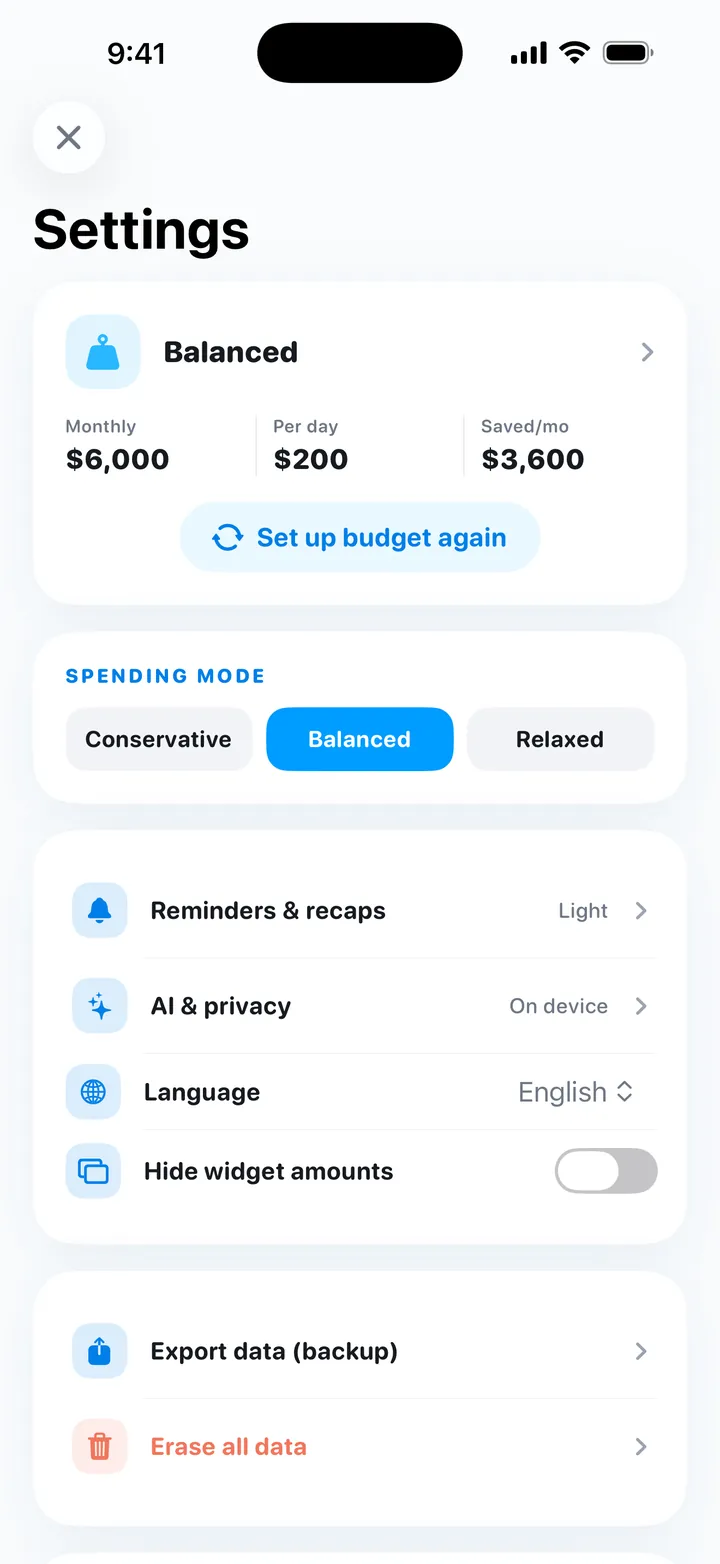
- No account, no sign-in, no bank connection. You set a monthly budget on first launch and start logging.
- Records are stored on the iPhone. Budget math always runs on the device. Entry parsing and insights also run on device by default, using Apple’s on-device model on compatible iPhones and local rules and templates otherwise.
- Online AI is optional and off by default. If you turn on the optional DeepSeek features, the app asks per feature before anything is sent. Only that request’s text goes out through the developer’s relay, such as one entry’s text or aggregated category totals for a report. Photos, audio and your full ledger are never uploaded, and you can switch it off at any time.
- Export and erase. You can export a backup, and erase all data from Settings.
Logging in a few seconds
- Type one line. Enter “Coffee 5” or “Taxi home 18” and the amount and category are filled in. Dates like “yesterday” are understood.
- Voice. Tap the mic on the Home “Add” capsule, say what you bought, review the draft and save. Speech recognition runs on device only, and raw audio is never uploaded.
- Screenshots and photos. Tap the picture button next to “Add” and choose up to 5 screenshots or photos of payment records, bills or receipts. Apple Vision reads the text on the device, each line becomes a draft you can edit or uncheck, and nothing is saved until you tap save.
- Action Button, Siri and Shortcuts. The Quick Log action records a line of text without opening the app and replies with what is left to spend today. See logging expenses with the Action Button.
Each entry lowers “left to spend today”. Spend less than the daily amount and the difference carries into the following days, capped at 5 days’ worth; spend more and the coming days get less. If you use the optional budget assessment, fixed costs such as rent and commuting are subtracted before the daily amount is worked out.
Try My Money on iPhone
Your monthly budget as one number: what you can still spend today. Log by typing, voice or a bill screenshot. Free, no account, no ads.
What are the limits of budgeting without bank sync?
- It is manual. Every entry is logged by you, by typing, voice or screenshots. Skip a week and the numbers are off until you catch up.
- No bank or card import. My Money does not pull in transactions or balances from any bank or card.
- iPhone only. It needs iOS 17 or later. There is no Android, web or Mac version.
- One person, one currency. No shared or family ledger and no multi-currency conversion. The English interface shows $; amounts are plain numbers with no exchange rates.
- Back up with export. Don’t count on iCloud sync between devices; export a backup, especially before you change phones.
- Voice depends on the device. Voice logging needs on-device speech recognition for your language; otherwise, type.
- Spending, not wealth. It tracks spending and income against a budget. It is not a net worth or investment tracker, and it is not financial, investment or tax advice.
Should you choose bank sync or a manual budget app?
Choose a bank-sync app if you want every transaction captured without effort, you juggle several accounts and cards, you care about net worth or investments, or you know you will not log by hand.
Choose a manual, private app if you would rather not grant ongoing access to your bank data, you want to change day-to-day spending more than you want a complete ledger, you pay with a mix of cash and cards, or you do not want to create an account.
You can also combine them. Keep your bank’s own app for balances and statements, and use a manual daily budget for everyday spending. The weekly review is where the two meet.
FAQ
Is there a budget app that doesn't require linking a bank account?
Yes. Manual budgeting apps let you log spending yourself instead of importing it from your bank. My Money for iPhone is one example: it needs no account, no sign-in and no bank connection, and it stores your records on the iPhone.
Is manual expense tracking accurate enough for a budget?
Usually, if you log at the moment you pay and spend five minutes a week checking your bank or card app for anything you missed. A budget needs your everyday spending captured, not every cent of your fixed bills.
Can I use My Money without creating an account?
Yes. There is no account and no sign-in. You set a monthly budget on first launch and start logging.
Does My Money work offline?
Logging and the daily budget do not depend on an online account: records are stored on the iPhone, budget math always runs on the device, and entry parsing runs on device by default. The optional online AI features, which are off by default, are the part that needs an internet connection.
What does bank sync do that a manual app cannot?
It imports transactions automatically, including ones you forgot, and can show balances across accounts. Choose it if you need automatic import, net worth or investment tracking and are comfortable granting ongoing access to your transaction data.
Try My Money on iPhone
Your monthly budget as one number: what you can still spend today. Log by typing, voice or a bill screenshot. Free, no account, no ads.
Keep reading
 The best iPhone budget apps that don't need your bank login (2026)Nine iPhone budget apps that work without your bank login, compared on platforms, price and bank sync. Each listing checked on Sept 26, 2026.
 How to turn bill screenshots and receipts into expense entries on iPhoneLog expenses from payment screenshots, bills and receipt photos on iPhone: which images read well, the steps in My Money, accuracy tips and privacy.
 How to log expenses with the iPhone Action Button, Siri, Back Tap and ShortcutsPress the Action Button, say "lunch 12", and the expense is logged. How to set up My Money's Voice Log and Quick Log with Shortcuts, Siri and Back Tap.