How to log expenses with the iPhone Action Button, Siri, Back Tap and Shortcuts

Short answer
My Money gives the iPhone Action Button two actions. Voice Log opens the app straight into a voice recorder so you can check the entry before saving; Quick Log saves a line of text without opening the app. Put Apple's Dictate Text action in front of Quick Log, bind that shortcut to the Action Button (or to Back Tap or Siri on other iPhones), and one press plus one short sentence logs the expense.
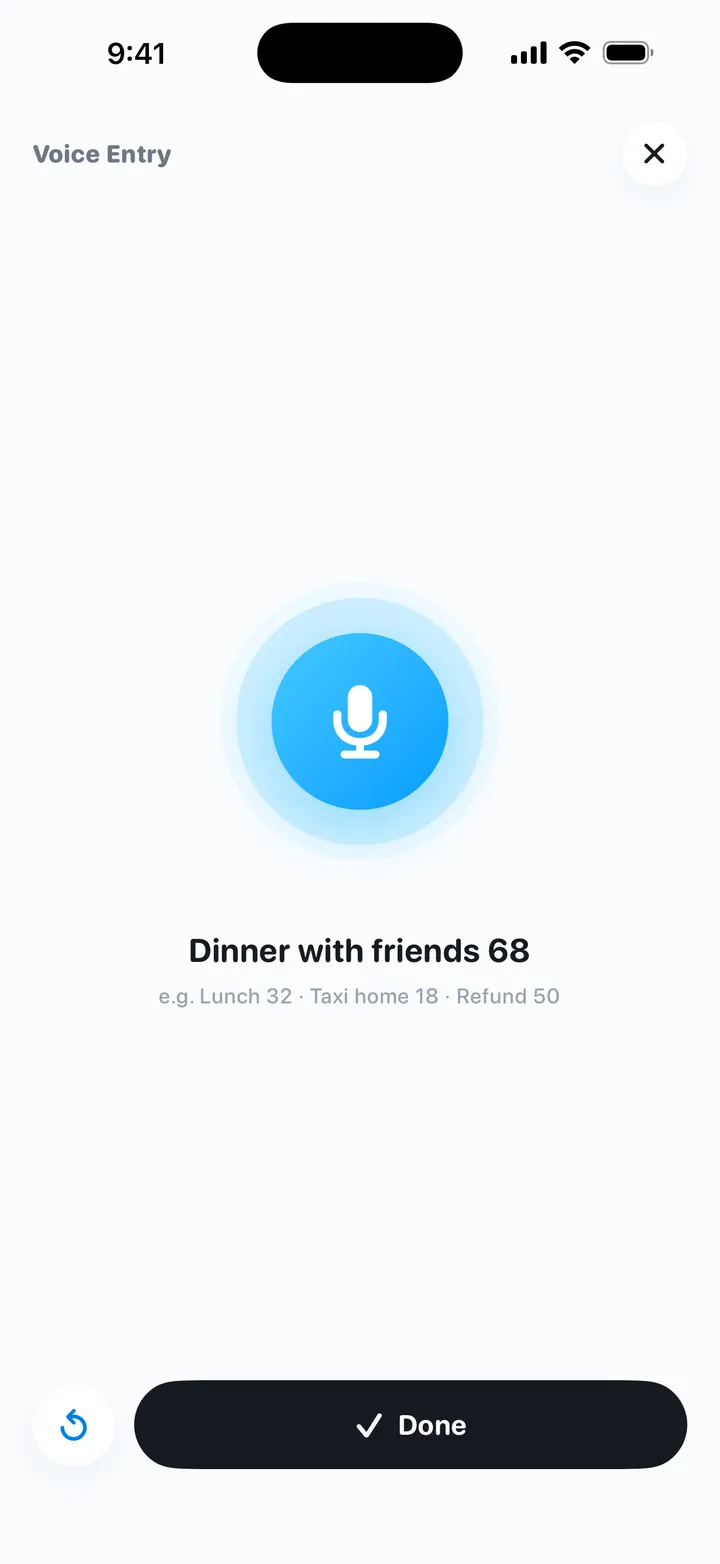
The quickest way to log spending on an iPhone is to put it on a button. My Money, a free daily-budget app for iPhone, gives the Action Button, Siri and the Shortcuts app two actions. Voice Log opens My Money straight into a full-screen voice recorder that starts listening; you check the draft, tap save, and the recorder closes. Quick Log saves a line of text without opening the app at all. Put Apple's Dictate Text action in front of Quick Log and you have hands-free logging: press and hold the Action Button, say "lunch 12", and the expense is saved. iPhones without an Action Button can run the same shortcut with Back Tap or Siri.
Voice Log or Quick Log: which should you use?
Both start with one press. The main difference is whether you see the entry before it is saved.
| Voice Log | Quick Log (with Dictate Text) | |
|---|---|---|
| Opens My Money | Yes, straight into the recorder | No, you stay where you are |
| Review before saving | Yes, you check the draft and tap save | No, it is saved immediately |
| Who does the listening | My Money, with on-device speech recognition | iOS, through the Dictate Text action |
| What you do per entry | Press, speak, check, save | Press, speak |
| Setup | Pick one action in Settings | Build a two-action shortcut once |
| Best for | Getting started, or entries you want to double-check | Small everyday purchases you log several times a day |
If you are new to voice logging, start with Voice Log. You will see how your sentences are read and learn which phrasing works. Once your entries keep coming out right, move the Action Button to Quick Log. You can also use both: one on the Action Button, the other on Back Tap or Siri.
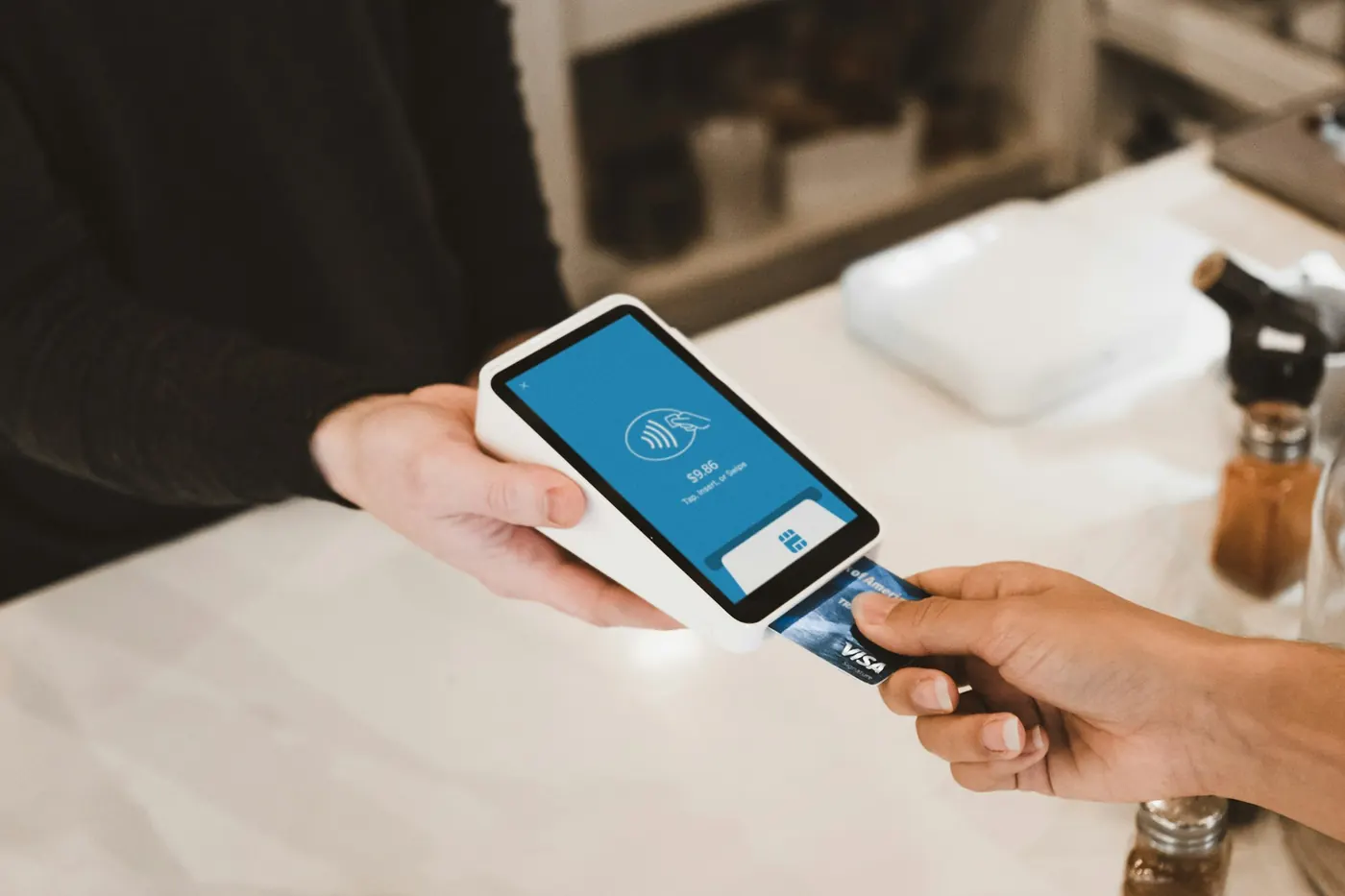
Why log an expense at the moment you pay?
Manual expense tracking usually breaks in the gap between paying and writing it down. A $40 grocery run is easy to remember in the evening. A $4 coffee, a $3 bus fare and a snack from the vending machine are not, and those are the entries that go missing. The fix is not more willpower. It is fewer steps between the payment and the record.
Three habits make any tracker easier to keep, whether it is a notebook or an app:
- Log before the phone goes back in your pocket. The price and the reason are still in front of you.
- Use one fixed format: item, then amount. "Coffee 5", "Taxi home 18", "Groceries 42". Short sentences are faster to say and easier to check.
- One purchase per entry. Separate entries are easier to correct and to sort into categories later.
A hardware button makes the first habit close to automatic. There is no app to find and no screen to tap through: press, speak, done.
Option A: put Voice Log on the Action Button
This is the simplest setup. You don't need to edit anything in the Shortcuts app.
- Open the Action Button settings. Go to Settings → Action Button.
- Choose Shortcut. Swipe through the options until you reach Shortcut.
- Pick Voice Log. Tap to choose a shortcut, find My Money and select Voice Log.
- Try it. Press and hold the Action Button. My Money opens in the full-screen recorder, already listening. Say what you bought, check the draft, then tap save. The recorder closes.
Option B: log expenses without opening the app (Dictate Text → Quick Log)
Quick Log on its own needs a line of text to log. Apple's Dictate Text action turns your voice into that text, so the two together make a voice button that never opens My Money. You build it once in the Shortcuts app.
- Create a new shortcut. Open the Shortcuts app and tap + to start a blank shortcut.
- Add Dictate Text. Search for Dictate Text and add it. Expand its options and set Stop Listening to After Short Pause, so it ends soon after you finish your sentence. Check that its language is the one you will speak.
- Add Quick Log. Search for My Money and add Quick Log below Dictate Text.
- Connect the two. In the Quick Log action, set Log text to the Dictated Text variable. This is the step that passes your words to My Money.
- Name it. Rename the shortcut at the top, for example "Voice Log Anywhere", and tap Done.
- Bind it. Go to Settings → Action Button, swipe to Shortcut and choose Voice Log Anywhere.
My Money also has a step-by-step guide for this exact setup in its Settings, if you would rather follow along on the phone.
What happens after you press the button?
Example: logging lunch with Quick Log
My Money's Home screen says you have $35 left to spend today. You pay for lunch, then press and hold the Action Button.
- iOS starts listening. You say "lunch 12" and pause.
- Dictate Text hands "lunch 12" to Quick Log. My Money reads the amount and what it was for, and saves the entry.
- You get the reply: "Logged $12. $23 left to spend today." ($35 − $12 = $23.)
- On iPhones with a Dynamic Island, a short confirmation also appears there.
The entry then shows up in My Money's recent entries and history like any other. The "left to spend today" figure comes from the budget you set on first launch; the daily budget method guide shows how it is worked out.
Try My Money on iPhone
Your monthly budget as one number: what you can still spend today. Log by typing, voice or a bill screenshot. Free, no account, no ads.
Which iPhones have the Action Button?
The Action Button is on iPhone 15 Pro and iPhone 15 Pro Max, every iPhone 16 and iPhone 17 model, iPhone 16e and iPhone Air. The standard iPhone 15 and iPhone 15 Plus, and earlier models, don't have one. My Money itself runs on any iPhone with iOS 17.0 or later.
No Action Button? Use Back Tap
Back Tap runs a shortcut when you tap the back of your iPhone.
- Open Back Tap. Go to Settings → Accessibility → Touch → Back Tap.
- Choose Double Tap or Triple Tap.
- Pick your shortcut. Scroll to the Shortcuts section and choose Voice Log Anywhere, or a shortcut that runs Voice Log.
If Double Tap fires when you don't mean it to, switch to Triple Tap.
Can you log expenses with Siri?
Yes. My Money's two actions come with Siri phrases:
- "Voice log with My Money" opens the voice recorder, the same as Voice Log.
- "Quick log with My Money" runs Quick Log.
You can also ask Siri to run your own shortcut by its name, such as "Voice Log Anywhere". Pick a name that is easy to say and doesn't sound like another shortcut. Siri is handy when your hands are full.
Troubleshooting voice expense logging
Voice is unavailable in My Money
My Money's recorder uses on-device speech recognition only. If your iPhone doesn't support on-device recognition for the language you are using, voice is unavailable. Type the entry instead, such as "Coffee 5"; the amount and category are filled in for you.
Quick Log saved something wrong
Quick Log has no review step. The entry is saved as soon as it runs. Open My Money and edit or delete the entry from your history. If it happens often, use Voice Log for a while, since it shows you the draft first.
The amount or item came out wrong
Say the item and the amount clearly, and keep the sentence short: "lunch 12", "taxi home 18". Leave out filler words. Pause briefly at the end so dictation stops cleanly.
Dictation stops too early or too late
Change Stop Listening in the Dictate Text action. After Pause waits longer than After Short Pause, and On Tap keeps listening until you tap.
What happens to your voice and your data?
- Voice Log: speech is recognized on the iPhone. Raw audio is never uploaded.
- Quick Log shortcut: iOS's Dictate Text action does the listening, and My Money receives only the text.
- Reading the entry: done on device by default. The optional online AI (DeepSeek) is off by default, asks you feature by feature before anything is sent, and then sends only that entry's text. You can switch it off at any time.
- Your records: stored on your iPhone. No account, no sign-in, no bank connection.
For the wider trade-offs, see budgeting without linking a bank account.
What this setup can't do
- No bank or card sync. Every entry comes from you: typed, spoken, or read from a screenshot.
- iPhone only, iOS 17.0 or later. There is no Android, web or Mac app.
- Quick Log doesn't ask for confirmation, so mistakes are fixed afterwards in the app.
If most of your spending already appears as payment confirmations or receipts, turning screenshots into expense entries can be faster than speaking each one.
FAQ
Can I log an expense on iPhone without opening the app?
Yes. In the Shortcuts app, build a shortcut with Dictate Text followed by My Money's Quick Log, and set Log text to Dictated Text. Run it from the Action Button, Back Tap or Siri; the entry is saved and you get a reply such as "Logged $12. $23 left to spend today."
Which iPhones have an Action Button?
iPhone 15 Pro and iPhone 15 Pro Max, every iPhone 16 and iPhone 17 model, iPhone 16e and iPhone Air. On other iPhones, Back Tap (Settings > Accessibility > Touch > Back Tap) or Siri can run the same shortcut.
What do I say to Siri to log an expense with My Money?
"Voice log with My Money" opens the voice recorder, and "Quick log with My Money" runs Quick Log. If you built your own shortcut, you can also ask Siri to run it by its name.
Why is voice logging unavailable in My Money?
The in-app recorder uses on-device speech recognition only. If your iPhone doesn't support on-device recognition for the language you use, voice is unavailable, and you can type the entry instead, for example "Coffee 5".
Does My Money upload my voice recordings?
No. The in-app recorder recognizes speech on the iPhone and never uploads raw audio. With the Quick Log shortcut, iOS's Dictate Text action does the listening and My Money receives only the text.
Try My Money on iPhone
Your monthly budget as one number: what you can still spend today. Log by typing, voice or a bill screenshot. Free, no account, no ads.
Keep reading
 How to turn bill screenshots and receipts into expense entries on iPhoneLog expenses from payment screenshots, bills and receipt photos on iPhone: which images read well, the steps in My Money, accuracy tips and privacy.
 How to stop overspending on food delivery without giving it upSpending too much on food delivery? Find your real number, set a weekly food amount inside a daily budget, and keep delivery for set days. With an example.
 How to budget without linking your bank accountYes, you can budget without bank sync. Compare manual and bank-linked apps on privacy, effort and accuracy, and learn to log spending in seconds.